
Cloud storage manager
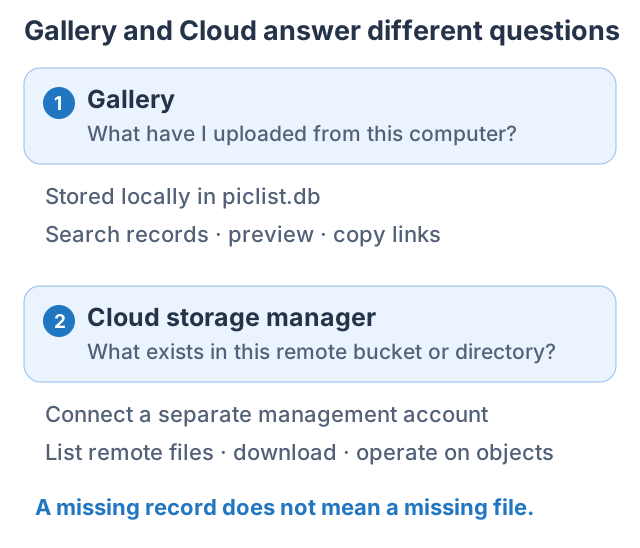
Cloud reads the provider's actual file list. Use it to verify stored files, find images uploaded elsewhere, and manage existing assets. A first upload only needs an uploader configuration; connect management when you need remote browsing.
Gallery or Cloud?
| Goal | Entry point |
|---|---|
| Recover a link uploaded on this computer | Gallery |
| See bucket files from all devices | Cloud |
| Confirm a file actually exists | Provider dashboard or Cloud |
| Change a URL in local history | Gallery bulk editing |
| Download, rename, or delete remote objects | Supported Cloud operations |
Connect your first management configuration
- Click Cloud.
- Choose a provider, then New configuration, or start from a provider card.
- Enter a descriptive Alias and connection fields. S3 API management uses the same kind of interface as AWS S3 uploads, with separately stored settings.
- If you have an upload configuration, use the form's import entry. Recheck the account, region, endpoint, bucket, and serving address afterward.
- Save, open the configuration, choose a bucket or directory, and refresh the list.
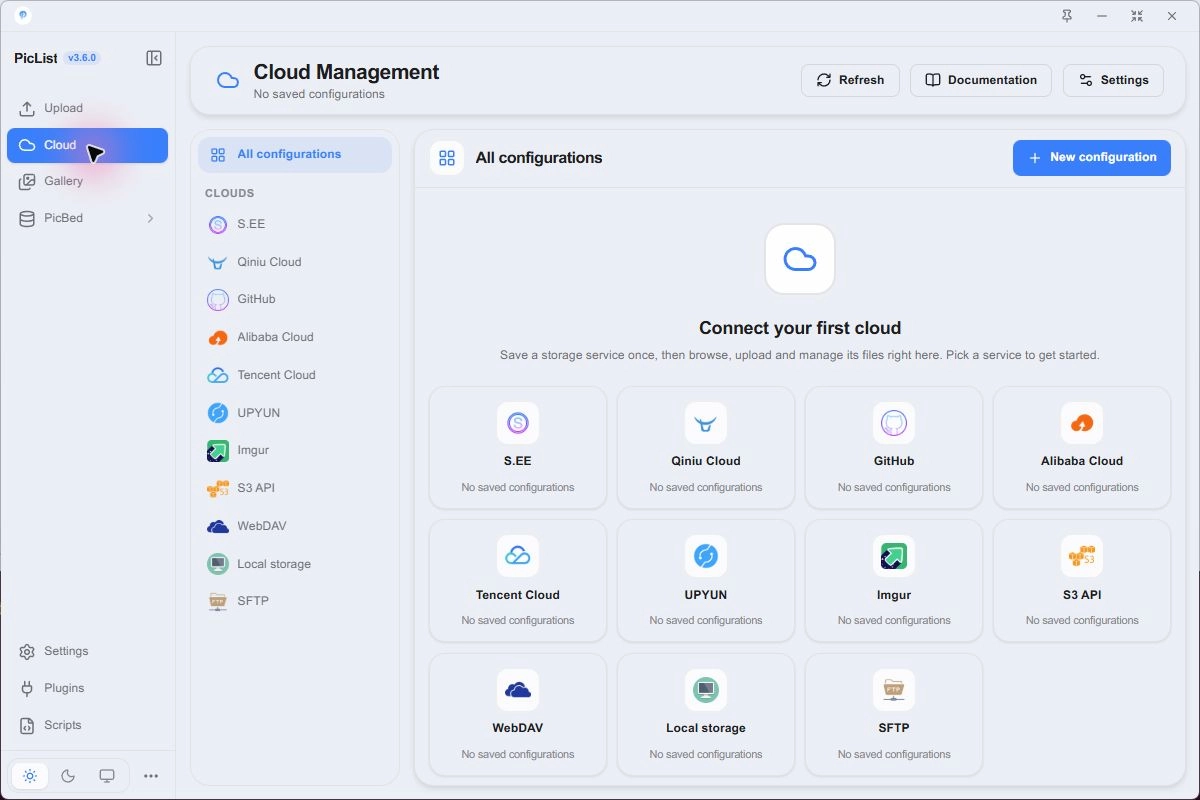
Management settings live in manage.json. Automatic uploader import is configured under Settings → Upload settings, for supported providers. Imported fields, public mappings, and permissions still need checking.
What to prepare
| Information | Purpose | How to verify |
|---|---|---|
| Alias | Distinguish accounts or connections | Check the name above the file list |
| Interface, region, credentials | Connect to the provider | Refresh buckets or directories |
| Bucket or directory | Select the operation target | Inspect the listing path |
| Serving domain and path | Generate copied links | Open one image in a browser |
| Pagination and preview preferences | Control the listing | Check whether another page exists |
Upload-only credentials might not allow listing or reading. For empty lists or permission errors, check management permissions separately.
Browse and copy your first link
- Check the account alias and provider at the top.
- Choose the bucket, repository, or root, then navigate to the upload directory.
- Find your test file in grid or list view.
- Preview it, choose a copy format, and copy URL.
- Open it in a browser before using Markdown or HTML.
The actual file location, serving address, and copy format are separate settings. See S3 path mapping for endpoint and object key examples.
For a single bucket's wrong links, check its own serving domain and path. Temporary private sharing links expire and should not be used as permanent article image URLs.
Pagination and newest files
With pagination enabled, PicList 3.6.1 provides first, previous, next, and last-page buttons. Enter a page number and press Enter to jump; unvisited pages on the way load automatically. A page count ending in + means the total is not yet known. Clicking the last-page button loads subsequent pages until the end is found.
Normal paginated sorting and search apply only to the current page. To find the newest files in the current folder:
- Open the intended bucket or directory and click Newest files in the bottom pagination bar.
- Wait for all pages to load. The bar shows the scanned item count; large folders can take longer. To stop, click Cancel and confirm.
- After a successful scan, the list returns to page one with files sorted newest first using dates returned by the provider. Sorting now covers the whole loaded folder; search still covers only the current page.
If the provider returns no file dates, PicList reports that newest order is unavailable while still loading the full folder. Last page means the end of the provider's listing and does not guarantee the most recently uploaded files.
Upload, download, and rename
Enter the intended directory before uploading. Inspect each transfer's path, progress, and result. Management uploads can have independent settings; test one file before a batch.
Download and rename
Choose a local download directory and review task results. If counts differ, check pagination, filters, and failed entries.
Check the original and new object paths before renaming. Object storage renaming can use copy followed by delete, depending on the provider, and requires suitable permissions. Renaming changes addresses; published article links do not update automatically.
Copy links
Management links use the current storage's domain and path. If formats differ from Upload or Gallery, check Cloud's own copy settings. Test a direct URL before other formats.
Preview and transfer settings
Open Cloud's Settings for copy formats, pagination, previews, and transfers. Public thumbnail suffixes affect preview requests while copying, downloading, and deleting retain original object addresses.
See File previews for images, text, and media. Check the original file and address when a preview fails.
Bulk operation results
Check the account, bucket, directory, selected count, and action before a batch. 3.6 checks per-object outcomes. After partial success, process failed items separately.
Deleting remote files affects articles using their links. Refresh the actual listing and inspect failures afterward; local gallery records may need separate cleanup. Back up needed files before migrations or large reorganizations.